One field for everything
Artists, albums, tracks, videos, playlists and mixes come back from a single search. A pasted tidal.com link resolves and opens the release. The paste button pastes what you copied and runs the search in the same click.
Waves saves, for offline listening, what your own TIDAL account can already play, and it does far more along the way than the front page has room to show. This is the long version: every screen, every state a button can be in, and every setting, by its real name.
Current: v0.1.34
I'm a sucker for a beautiful graphical interface and tend to avoid the command line, but I seem to be in the minority, so the GUI side of tools like this rarely gets the attention the engine underneath does. Waves is my way of giving back something genuinely useful (and, honestly, scratching my own itch): a polished, native GUI over an engine that already worked well. Waves began as a from-scratch front end built directly on that engine, which descends from the proven Tidal-DL-NG project, carried forward by the community as Tidaler and maintained and improved here, with tidalapi underneath all of it. Everything on this page is what Waves adds on top, and, further down, the handful of changes made inside the engine itself.
The one design rule: don't break what works, but never stop improving what can be. Both halves carry equal weight. A paid TIDAL plan is required, and Waves can only save what your account can play. Waves is, and always will be, open source under the same license as the engine it is built on, AGPL-3.0.
Type anything, or paste a tidal.com link. Waves searches all of TIDAL at
once and remembers where you were when you come back.
Artists, albums, tracks, videos, playlists and mixes come back from a single search. A pasted tidal.com link resolves and opens the release. The paste button pastes what you copied and runs the search in the same click.
Search for a particular song, album, video or playlist and it is pinned at the top of the All page under TOP RESULT, above every section, so the thing you typed is the first row. An artist gets no pin, because the strip below already leads with them. Then artists in a sideways strip, then albums, tracks, videos, playlists and mixes, each section an overview with SHOW ALL beneath it. Whichever sections you expand stay expanded on your next search, and the type filter starts back on All every time, so a chip you picked earlier can never hide what you just searched for. Expanding ARTISTS reaches up to sixty matches, enough to find a lesser-known artist who shares a name with a famous one.
They show their tracks right there, with per-track selection and a DOWNLOAD SELECTED button, or click the title for the full page. The sort control (relevance, release date, name, popularity, and a direction arrow) reorders tracks and videos too, and the sort you pick is remembered the next time you open Waves.
Color-coded HI-RES LOSSLESS HIGH badges, release dates, durations, and clickable per-artist credits. A Dolby Atmos release is its own row beside the stereo one, marked ATMOS SPATIAL, so you can see it and choose it. Filter chips at the top narrow the page to one type.
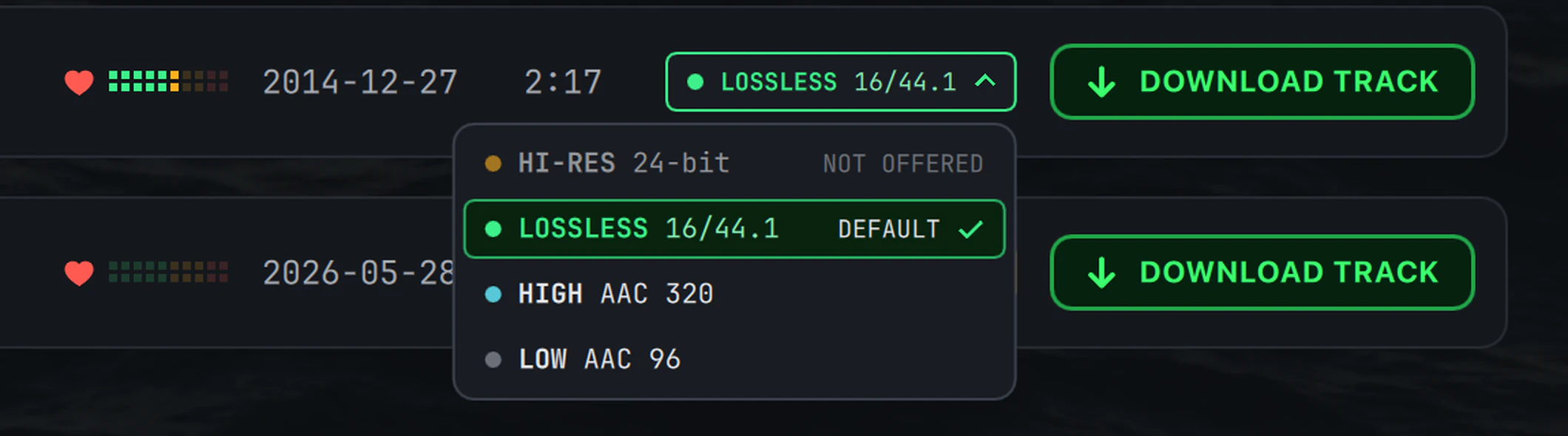
A badge is also a control. Click one and a menu drops with the four tiers, HI-RES LOSSLESS HIGH LOW, each beside its spec. The tier from Settings is marked DEFAULT; a tier this release cannot supply reads NOT OFFERED and does nothing; the tier already on disk is called out, so you never fetch the same quality twice; and a check sits on the tier a fresh save would ask for right now. Pick one and the badge tints to show the choice is yours rather than the catalog's. A choice made on an album carries to every song in it, and it holds until you pick another tier or close Waves.
Pages and cover art you have seen render at once from a persistent local cache and refresh in the background. Pages you opened are kept alive rather than rebuilt, so Back and Forward land on a finished page in milliseconds, rows, scroll position and expanded albums intact. Resting the pointer on a card, or on an album row, builds its page and its track list before the click lands, so the page you open is already finished. The cover cache holds four times what it used to.
Every step of how you got here as clickable pills; a long trail folds behind an ellipsis. The mouse side buttons walk the same history, and Search, My TIDAL and Settings each reopen exactly where you left them.
Waves opens on Browse: New Arrivals, TIDAL Rising, and the full genre, mood and decade catalog, rendered with live cover mosaics. Every page drills all the way down.
Leave Waves running for days and Browse quietly follows what TIDAL is featuring instead of freezing at whatever loaded first. A page that hits an error offers RETRY in place.
"Albums you'll enjoy", "Your forgotten favorites" and your genre rows appear alongside the editorial pages, each one ready to save like any other Browse row.
Drill from playlist folders (moods, genres, decades) into a grid of just that category's playlists, with a one-click DOWNLOAD ALL for the whole category. A Confirm bulk downloads setting asks before it starts, and can be switched off once you would rather it did not.
The ART / CONSOLE chips sit in the corner, and the choice is remembered. Browse cards wear their library verdict on the artwork without a hover.
Albums, tracks, artists, videos, playlists and mixes you have hearted, with virtualized infinite scroll so a large library stays smooth.
{folder_path} token in the playlist template.Any track, or an artist's top song, plays in full from your own account, right where you are. Videos play in a built-in player with a quality picker that offers only what the video really carries.
A grid of large 16:9 thumbnails that follows the window width, each with title, artist, release date, a resolution badge in the corner and a full DOWNLOAD button. Every artist page ends with a VIDEOS section in the same grid.
Seeking, keyboard controls, and clickable links on the title and artist. Its picker reaches 1080p, switches mid-stream without losing your place, and remembers your choice. Video quality in Settings sets the default.
Rest the pointer on a thumbnail and a floating preview grows out of it and plays, with sound; click and the full player picks up at exactly the point the preview reached. Turn it off with Videos preview on hover in Settings › Advanced.
Title, every credited artist, release date, an embedded thumbnail and the music-video media kind that library managers read, filed under Videos/Artist/[Year] Title, one folder per primary artist so collaborations do not scatter. Save one video, pick several from an expanded playlist, take every video an artist has with All videos, or bring them along with a discography.
Nothing here is a spinner and a hope. Every row states what it asked for, what arrived, and exactly where it got to.
An album row states the tier it will really get, before it starts: the tier you asked for, capped by what TIDAL lists for that release and track. Then the tier that arrived. MIXED is what it says when its tracks did not all land at the same tier, so a release that quietly arrives below what you asked for is visible without opening the row. ATMOS is a kind beside the tiers rather than a rung among them: a Dolby Atmos copy says so in the same column, and in a MIXED roll-up it lists after the ladder. Expanded tracks each state their own tier beside their word, and the songs you already have are marked the moment the row opens, each with the quality of the copy you hold, in the same green or gold as the download button.
Completed / Failed / Stopped / Downloading / Queued, with live per-track progress and per-album and per-artist roll-ups. An album, playlist or mix row peeks on hover and opens on click to its per-track list (a playlist past 500 tracks lists the first 500 and says how many more it holds). Every header but DOWNLOADING has its own CLEAR, since ending a live transfer is the row's own control; CLEAR ALL sits at the foot; clearing never interrupts a running item.
A track at 100% is not a finished track: it still has to be merged, converted to FLAC, tagged and moved into place. Waves says FINISHING for exactly that window, and the row's dots keep breathing while it runs, so a slow tag on a large file never reads as a hang.
Failures collect in their own section, whose header offers RETRY ALL, and clearing finished rows never sweeps them away. A failed album, playlist or mix says how many songs failed, and out of how many, so a run that saved almost everything reads differently from one that saved nothing. Rows that STOP ended keep their place too, in a STOPPED section of their own, ready to retry or clear. PAUSE turns gold while the queue runs and becomes a green RESUME.
Some editions carry a "not streamable" flag on every track even though TIDAL's own apps still play them. Waves lets TIDAL decide, track by track: what TIDAL serves to your account is saved, and nothing more. A track TIDAL genuinely will not serve is marked UNAVAILABLE, and no retry is offered, because a retry could never work, and the rest of the album still finishes.
Finished rows do not pile up for the whole session and progress updates cost far less, so the drawer stays responsive through a discography. What you saved is recorded independently of the queue, so nothing is forgotten when a row is cleared.
Items run strictly one at a time, in the order you queued them. Parallelism lives inside each album or playlist, governed by Concurrent track downloads in Settings › Downloads.
An item still waiting its turn shows an ✕ beside QUEUED and can be dropped right there, without opening the queue to find the row.
The drawer resizes when you drag its left edge, and remembers the width you chose, so long titles and their tags sit on one line. It closes from its own header, rather than by clicking the page behind it.
Closing Waves while the queue is still running asks first instead of ending a track mid-file: KEEP DOWNLOADING or EXIT ANYWAY, with a "Don't warn me again" box if you would rather it never asked.
Artist pages carry the bio, discography, EPs and singles, top tracks and videos, each with a one-click save-the-whole-thing action. What "the whole thing" means is yours to define.
Smart whole-artist saving. DOWNLOAD DISCOGRAPHY pulls in whatever the source toggles say: albums, EPs and singles, features, compilations, music videos. Features and compilations pull only the tracks the artist actually appears on, never another artist's whole album. By default just the most complete edition of each album is kept, while genuinely different releases (remasters, live takes, anniversary editions) are preserved.
The page shows what it would save. With Most-complete edition only on, the artist page leaves off an edition whose songs all sit inside a fuller edition of the same album, so what you scroll through is what DOWNLOAD DISCOGRAPHY would actually fetch. Turn on Show every edition on artist pages in Settings and they are all listed again, for when you want the full picture rather than the download's.
Best of both. When one edition has the bonus tracks and another the better master, Waves can build a single album that takes each song at its best: the complete edition's track list, each shared song pulled at the highest quality available, the exclusive bonus tracks at the complete edition's quality. Matching is strict, ISRC first, so nothing is dropped or swapped, and a borrowed track is tagged under the edition you chose rather than the one it came from. Best of both is the default choice. When you save a single album it runs on its own; across a discography, or a playlist's DOWNLOAD FULL ALBUMS, it follows Most-complete edition only like every other edition choice, and that is on by default too. A merge is built only when it gets you better audio at the quality you chose, a clean edition is never merged with an explicit one, and the merged album shows at its real length in the queue, gets its playlist file like any other album, and is recognized as saved when you reopen Waves.
Explicit, clean, or both. When a release comes in both versions, keep whichever you prefer, or both side by side; the choice applies to search results and saves alike.
And the rest of a discography run. It refuses to start on a partial scan rather than saving a truncated one, two discographies that share an album both finish, and ALL VIDEOS in the VIDEOS section saves an artist's videos with live progress on the button itself.
Saved music lands in Artist/[Year] Album/Disc-Track. Artist - Title, the
structure Plex reads natively, instead of flat Albums/ and Tracks/
bins. Every path is a template you can rewrite, with a live example under it as you type.
{token} is highlighted, and a built-in reference lists every token with a description, an example and one-click copy.The characters a filesystem refuses are yours to decide about. Set one stand-in for all of them, or give each its own, so AC/DC files as AC-DC, a playlist called Chill: Night files as Chill · Night rather than losing the colon altogether, and an album titled ? still gets a folder of its own. A recommended set comes with a fresh install (/ and \ to -, : to · , " to ', ? to the fullwidth ?); you are asked first if you already have a library, and stand-ins only ever apply to future saves. Nothing already in your library is renamed or moved.
Names are fitted to what your operating system actually allows, measured in bytes rather than characters, so long titles in Japanese, Chinese, Cyrillic or emoji land intact, and inside Windows' 260-character path limit, shortened only as much as it takes and never at the cost of the file extension. Two tracks with the same name, or names that differ only by case or an accent, keep separate files.
Tags a library manager can trust. Clean Album Artist (on by default) writes only the primary artist to the album-artist tag, so Plex will not split a multi-artist album. ReplayGain tags are written by default; tracks TIDAL never measured are left untagged rather than stamped with a wrong level. Lyrics come from LRCLIB first and TIDAL second, timed ones as .lrc, untimed as .txt, never a fake .lrc, and a lyrics file you have edited by hand survives a re-save. The .m3u8 for a playlist lists its tracks in TIDAL's play order and is written whole or not at all.
cover.jpg.One is a receipt Waves keeps for itself. The other reads the tags of the music already on your drive, however it got there, and badges it wherever it appears.
A complete copy the scan can prove is really yours: year and edition agree, or track count and total seconds do.
A copy it cannot prove. The pill hedges in gold and keeps its "?", because a tag match is a recognition, not a receipt. A compilation reusing recordings you hold shows this, not green.
You hold part of it. The row counts what you have (7 OF 10 IN LIBRARY) and keeps a live save button; click and Waves fetches only the rest.
The single-track verdict, confirmed by its own seconds. Tracks you own wear it wherever they appear: search results, artist pages and My TIDAL.
Every pill is clickable: it names the matched folder, opens it in Finder or Explorer, and keeps DOWNLOAD ANYWAY one click behind it.
The master switch (off by default; nothing is scanned until you turn it on and save), a source picker (your Download folder, or a separate folder), a Rescan button, the bulk-skip toggle, and the MusicBrainz toggle.
Track and video buttons show DOWNLOADED across sessions, and album, artist, playlist and mix saves fetch only what is missing (a skipped track reads IN LIBRARY in the queue). Raise the Audio quality setting later and lower-quality copies show DOWNLOAD again, and saving one replaces the old file in place. Done labels name their subject: ALBUM IN LIBRARY, TRACK DOWNLOADED, VIDEO IN LIBRARY. A saved album's artwork keeps its Preview button while its save half shows DOWNLOADED with a checkmark; clicking it asks whether to fetch again and replaces only the copies Waves itself wrote.
A done button says IN LIBRARY only when the file really is inside your library folder; if saves land elsewhere it says DOWNLOADED, and moving the files in flips it on the next scan. This receipt is recorded independently of the queue, and every album folder always ends up a complete album: owning a song on one release never talks Waves out of fetching it for another release you asked for.
Experimental, off by default. Point Waves at your music folder (Settings › Library) and albums, artists and single tracks you already own wear an IN LIBRARY pill wherever they appear, color-coded by how sure the scan is (green proven, gold unproven, cyan partial) and one click from the matching folder in Finder or Explorer. Your files are only ever read: never written, moved or renamed. On a share that treats two spellings of a name as two folders, both artists stay in your library rather than one being dropped as a duplicate, and an album that an early version of Waves saved into a folder with a replaced character is recognized as yours again.
Identification is by tags, not folder names, so it works on a library Waves did not create, whatever your folders are called. A multi-disc set counts as one album; a partial copy says 7 OF 10 IN LIBRARY and keeps a live PARTIALLY IN LIBRARY button that fetches only the rest. Edition names match by meaning ("Deluxe Edition" and "Deluxe Version" are one edition, "(2011 Remaster)" matches "(Remastered 2011)") while a live or acoustic release never matches the studio cut. Real-world tag noise is absorbed: accents match plain spellings (a library tagged Bjork finds Björk), "&" and "and" are one word, "The Beatles" and "Beatles" are one artist, and one mis-tagged stray file no longer hides a whole album.
Play length is part of the proof. An undated copy whose track count and total seconds agree with the release is confirmed instead of left hedging; a same-count copy minutes apart is a different recording; and total seconds outrank the year tag, so a remaster carrying the original album's year still matches. An optional MusicBrainz check (off by default) confirms what the scan cannot settle alone, one request per second, artist and album title only, answers cached locally.
Artists wear the verdict across the lower edge of their picture with album and song counts, on search, Browse and My TIDAL, and the artist page says it under the name. Bulk actions respect the scan (its own toggle): a discography leaves out albums you hold, an album or playlist skips matched tracks, and the status line counts what was left out; a single track you click is never skipped silently. Rescans re-read only what changed, every folder you have scanned keeps its own saved index, and a network folder is scanned by only a few threads at a time, so a first scan cannot stall a struggling share.
The front page names three of these. Here is the whole set, and the problem each one was written to answer.
Each finished file is flushed to stable storage and then swapped into place atomically, so an interrupted save, or a power cut, cannot leave a truncated track in your library. Cover art and lyrics are written only after the track lands; a 0-byte leftover no longer blocks a track forever; the playlist file is written whole or not at all.
Track segments reuse pooled connections instead of paying for a fresh encrypted handshake each time, the fix for saves pegging the CPU. Segments can also be aborted mid-chunk, so quit means quit instead of waiting on a network read.
Finished tracks land in a few large writes instead of hundreds of tiny ones. A share that is merely busy is never mistaken for a dead one, a brief hiccup is retried on its own, and if the folder is genuinely unreachable one clear dialog says so, with Try again resuming everything you queued.
A share the system quietly ejected (sleep, a network blip) is mounted back with the credentials already in your keychain, a hung mount that answers nothing is force-ejected and reconnected, and a save that loses its folder mid-flight is held and retried rather than failing. Some shares hand back only part of a large folder list, which used to leave albums you already had looking missing; Waves now spots a short listing, finds the missing folders by name and reads the share again over a fresh connection. Access you grant to a network or external folder is remembered across launches, and no hidden ._ companion files are left on a WebDAV share.
A post-save repair writes real durations into the container, so strict players stop showing 0:00. And on Windows every FFmpeg job (FLAC extraction, video conversion, previews) runs fully hidden: no console windows stealing focus while you type.
Concurrent track downloads (Downloads); Parallel chunks per track, Minimum and Maximum download delay (s), Pause every N songs and Length of that pause (s) (Advanced). Present when you need them, out of the way when you don't.
Helper binaries are verified before they run, updates are signed and opt-in, diagnostics scrub identity at the moment each line is written, and a full reset is structurally unable to touch your music.
Waves downloads an FFmpeg build for your OS and CPU and checks it against a published SHA-256, so there is no hunting down binaries or editing paths. A color-coded status light shows where things stand, Waves warns you before saving anything that would come out degraded without it, with a one-click fix, and Or link your own FFmpeg is waiting below it if you already have a copy. The managed build can check for updates on its own (off by default), every launch or once a day.
Off by default. When on, Waves checks the releases page at launch or once a day and only notifies you; nothing downloads until you click Update, and the check sends none of your data. A small in-app notice then carries the whole update: download, verify, restart. Every build is checked against an Ed25519 signature that fails closed. Homebrew installs run brew upgrade; the Linux AppImage updates in place. Waves asks once, at the end of first-run setup, and either answer is remembered.
Detailed logging is off by default, and only warnings and errors are kept. Verbose diagnostics writes a detailed activity log, and Also hide titles and searches goes further. Usernames, file paths, hostnames, network addresses, emails, session tokens and your account ID are replaced the instant a line would be written, not at export, and an always-on ring of about 250 recent events is flushed on failure so even a first crash arrives with context. Export report writes a local file; Show file opens it. Nothing is ever transmitted unless you attach it to an issue yourself.
Reset all settings puts every option back to its default and keeps you signed in. Reset application is a true factory reset: it clears settings, sign-in, caches, ownership history and logs, then closes Waves so the next launch starts like a new install. Both ask first, and neither can touch your saved music: the full reset deletes only from a fixed list of the exact files Waves itself writes, with no recursive deletion anywhere in the code path. And if the settings file is ever damaged (a power cut or a crash mid-save), Waves sets the damaged file aside under its own name and starts on the defaults, instead of saving the defaults over your only copy.
Waves has no telemetry. It makes four optional connections, each carrying nothing about you. They are itemized, payload by payload, on the front page. On macOS and Linux the files Waves keeps for itself, your settings, your sign-in and its caches, are created readable by your account alone rather than by everyone with an account on the machine.
The first launch shows the Terms of Use and will not continue until they are accepted, and the accepted version is remembered, so Waves asks again when the terms change. Read them on the front page or at /terms/.
Waves reaches only your own account, and nothing that account cannot already play. The full position, and the gate every install has to agree to, is on the front page. If TIDAL will not serve a stream to your account, Waves cannot save it.
None of these is a feature. All of them are why the app feels finished, and the ones that move have an off switch in Settings › Advanced, by name.
Launch. A cinematic open-water launch sequence, version readout included, and a slow ocean loop behind the interface (Motion background switches it off). While a page loads, the waiting message rests on the ambient water instead of a black screen: a swell of light travels along a row of cells under the words Reading the wire…, in the same cell language the download buttons and queue rows speak, and the finished page cross-fades in over it.
Status bar. The wordmark at the foot of the window carries the update state, and clicking it checks for an update.
Rows fade and subtly tilt out of frame as you scroll; a floating back-to-top pill on every page; expanding an album scrolls its tracks into view, and collapsing it folds the panel shut as the page scrolls back to where you were before you opened it.
The window reopens at the exact size and position you left it in, and nudges itself back onto a visible screen if that monitor is gone. Settings sections remember whether you left them open or closed, and every page reopens where you were.
Clicking the blank part of a track row does what clicking its title does; the search box selects its term on focus so you can just type; paste-to-open for TIDAL links. Dialogs dim the window behind them.
Buttons swap their faces by rolling, with colors fading in step, and hover controls slide in rather than pop. Turn Hover controls slide in off and every swap is instant.
Native on macOS, Windows and Linux. Nothing to buy, nothing to unlock, nothing collected.